Newshosting Client : Download Scheduler

Newshosting released version 1.2.1 of their popular Usenet client a couple weeks ago.  Marking the first public ‘non-beta’ version of the newsreader.  They didn’t just remove the ‘beta’ tag though as version 1.2.1 included some nice new features including a download scheduler, nzb auto-import and the ability to pause individual downloads.  Today we’d like to walk you through setting up the new download scheduler.

Not a Newshosting member?  Enjoy unlimited Usenet with the free client for just $9.99 a month or $99 a year.

Newshosting Client : Configuring the Download Scheduler

Setting up the new download schedule in Newshosting’s client is a breeze.  Simply open the client and look to the menu options at the top of the screen.  Click on Options – Settings or press CTRL+, (ctrl comma).  After the settings box opens go down to the Scheduler icon on the left.  You’ll then see the following screen:
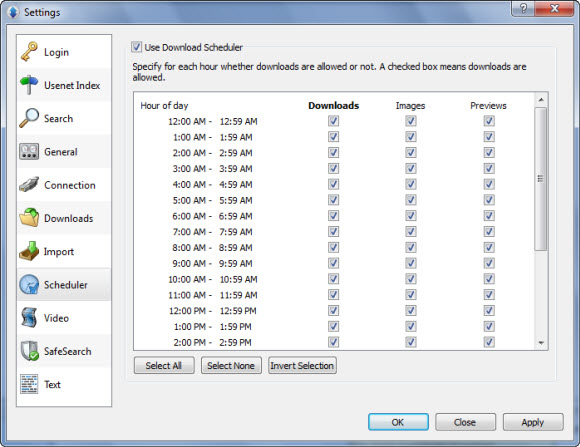
The first thing you want to do is enable the scheduler.  To do that simply click the Use Download Scheduler checkbox.  Then you can go through and select which hours you want the newsreader to download.  When your done making selections click Apply and then OK.  That’s all there is to setting up the download scheduler.  Stay tunes as next week we’ll take a look at the nzb auto-import feature and pausing individual downloads.

Visit Newsgroup Reviews to compare Usenet clients and follow us @NewsgroupRevs for the latest deals.
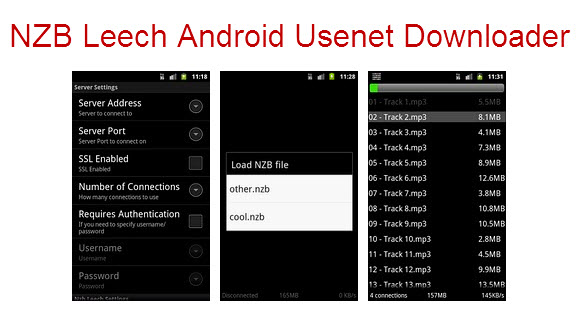
Nzb Leech – Free Android Usenet Downloader

Thanks to to Mark, an NGR regular for sharing his impressions of a new Android downloader called Nzb Leech.  The Nzb Leech app is available free on the Android Market and is getting rave reviews.  With an average of 4.5 stars after 36 reviews.  That along with Mark’s comments got our attention and in turn we’d like to share the Android app with you.  Nzb Leech is described as a simple Usenet client for Android.  Import NZB files and download on the go.  Download the latest version free and learn more from the Android Market page.

Here’s some more NZB Leech information from their Android Market page:

What’s in this version:

  1. New version, in time for the holidays:
  2. fix ssl for certain devices
  3. downloads saved to separate folders
  4. delete nzb file on successful download
  5. skip par2 files from downloading
  6. file download list sorted on load
  7. ability to test your server settings in settings
  8. I have a full time job and only works on this app whenever I have some spare time, but I do hope to extend this app to include par2 and unrar support!

Download Nzb Leech and test it out for yourself.  Please let us know what you think of the app.

Visit Newsgroup Reviews to compare Usenet and follow us @NewsgroupRevs for the latest offers.

Newshosting Usenet Client Version 1.2.1

The Newshosting client v 1.2.1 comes with several enhancements.  We’ve enjoyed the newsreader since the first beta was released in August and are excited to share that it’s now out of beta.  You can read our Newshosting client review to learn more about the Usenet browser.  Better yet download it for yourself.  The new version 1.2.1 is freely available for new and existing members.  Those new to the service can enjoy unlimited Usenet access with the free client and search functionality for just $9.99 a month or $99 a year.

Here’s a full list of new features and enhancements in the Newshosting client v1.2.1

New Features

• Downloads can be paused individually

• NZB Auto Import. Monitors a folder for NZB files, imports and deletes or moves them afterwards.

• Download Scheduler. The download scheduler can be enabled in the settings dialog. It’s configurable based on time-of-day for different types of downloads, normal downloads, previews and images. This will help you take advantage of your bandwidth when you’re not using it for other purposes.


Enhancements

• Download scheduler can now be disabled on a per-download basis.

• Additional default window sizes.

• If a download is paused due to the download scheduler it now shows when the download will resume.

• New RAR version.

• Drop support for NZB files. Dropping an NZB over the main application window imports the NZB.

• An alert message is displayed if a user tries to close the settings dialog without having saved the changes made.

• Reorganized the settings dialog because of the new features included.

Bug Fixes

• Previously used window size and position wasn’t restored on Mac OS X.

• In some situations the download scheduler prevented some downloads to start although they should have started.

• Windows XP now remembers the the path that was used in the open file dialog.

• In some situations the previous window size wasn’t restored properly in Windows.

Cheers to the Newshosting client developers for their latest innovations to the popular newsreader.  We look forward to their continued efforts in the year ahead.

Visit Newsgroup Reviews to compare newsreaders and follow us @NewsgroupRevs for the latest offers.

NewsLeecher Releases Version 5 Beta 9 and 10

The developer of NewsLeecher continues to innovate the popular newsreader at a fast pace.  We remember a time not too long ago when some wondered whether or not NewsLeecher would continue with new versions.  In the last year that question has been answered with a final release of version 4 and the steadfast development of version 5.  With ten beta versions released so far.  Including the beta 9 and 10 versions released this month.

Head on over to NewsLeecher and download the latest version 5 beta 10 beta.  Existing members have free access to all the beta releases.  If you’re currently running the final release of v4 we highly recommend you give the v5 beta a test drive.  As there are several advantages.  Those new to the client can try it free for 14 days.

Here is a list of features in the NewsLeecher version 5 beta 9 and 10 releases.

NewsLeecher v5.0 Beta 10
Release Date: 2011-12-06 16:43:42

+: (Re)implemented shortcuts for navigation subscribed Usenet
groups. Next Group = Alt + Right Arrow, Prev. Groups = Alt +
Left Arrow, Next Virt. Group = Alt + Down Arrow, Prev. Virt.
Group = Alt + Up Arrow.
+: Added ‘Create New Folder’ button to the NewsLeecher File
Explorer toolbar.
*: Smaller fixed and improvements.

NewsLeecher v5.0 Beta 9
Release Date: 2011-12-01 14:23:39

+: Added ‘Append to SuperSearch Search Query’ input box. The box
can be used for inputting a string that should always be
appended to the query sent to the SuperSearch server.
This can be useful for, for example, permanently excluding
articles containing certaing keywords, such as language
specific articles.
+: The width of the main filter boxes in NewsLeecher are now
automatically adjusted, depending on the space available on the
NewsLeecher toolbars.
The max width of the boxes can be changed here:
Settings -> Adv. Nerdy Tweaks -> Search Filter Max Pixel Width
+: Implemented a Quick Link feature, that can be used to quickly
execute a program or open a URL, by clicking a shortcut.
The links can be accessed and edited from:
Tools -> Quick Links
The links can also be accessed by keyboard shortcuts, Ctrl+1,
Ctrl+2 and Ctrl+3.
*: Vastly reduced the CPU cycles used by NewsLeecher, when lots
of articles were present in the Download Queue.
*: Fixed and enhanced the “Download to Groupname Subfolder”
feature, so only one groupname is used when creating the
subfolder, in case the article comes from multiple groups.
NewsLeecher now matches the article groupnames against the list
of local group subscriptions, to find the best suited name for
the subfolder.
*: Redesigned the two Articles Broweser toolbars, and re-arranged
some buttons on the final toolbar.
*: Redesigned the SuperSearch view, so it uses less pixels. A
major redesigned of the SuperSearch view in on the todo list.
*: XMas there performance improvements and lots of other smaller
improvements.
!: F8, F9 shortcuts are working again. The “Run Command Line on
Empty Queue” works again. Other smaller fixes.

Visit Newsgroup Reviews to compare newsreaders and follow us @NewsgroupRevs for the latest offers.

NBRemote : Newsbin Pro Remote Control

December 5, 2011 update: after using NBRemote from time to time over the last couple weeks we enjoy the app even more. You should definitely check it out and let us know what you think.

Earlier this year we started using Splashtop to remotely access Newsbin Pro.  Which was ok but Splashtop is a remote desktop app for iOS.  So it wasn’t integrated with the Newsbin client features in an iPhone / iPad rich interface.  Today that all changed as Newsbin released their own remote control client.  NBRemote let’s you control Newsbin from your iOS device.  It’s available in the App Store for iPhone, iPad or iPod Touch for $2.99.

NBRemote First Impressions

In a moment we’ll dive into the installation, configuration and features of NBRemote.  Before we do though I’d like to share some thoughts on the new app.  As I know some won’t want to read this whole post to decide whether or not to spend the $2.99 for the app.  In short if you use Newsbin Pro and have an iPhone or iPad we highly recommend you download NBRemote.  Definitely a solid effort and well worth supporting.  So read on to learn more about NBRemote and then download your copy and enjoy controlling Newsbin remotely.

NBRemote Prerequisites

In order to use NBRemote you will need a registered copy of Newsbin version 6.11 or later.  So if you’re currently on the free trial version you’ll want to go ahead and purchase a license.  The cost has been lowered from $35 to $20 and that includes free upgrades for life.  You might also consider Newsbin Internet Search.

NBRemote Installation

As mention make sure you have Newsbin Pro version 6.11 or later.  We tested on the latest beta release which was Newsbin 6.20 RC2 Build 1500.  After you’ve got that taken care of hop on into the App Store from your iPhone or iPad and purchase NBRemote.  The app is only 3.1 MB so it doesn’t take long to download.

Newsbin Configuration

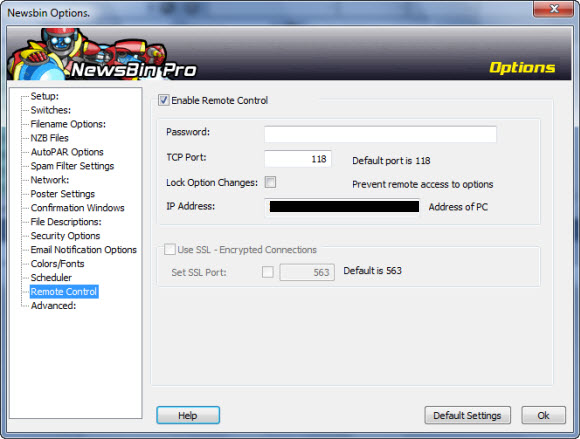
Before launching NBRemote you’ll want to configure some related settings in Newsbin.  To do so fire up Newsbin and go to Options – Options – Remote Control.  Which will bring up the following screen:

Check the box to ‘Enable Remote Control‘ and set a password.  You can make the password anything you want.  It will be used to connect from NBRemote.  You can change the port or leave it as 118.  Note: if you change it make sure to set the port number in NBRemote to match.  Now you’re ready to launch NBRemote.

NBRemote Configuration

The first time you launch NBRemote you’ll need to go in and setup a connection to your system.  Using this guide will make it a breeze.  We’ll walk you through it here as well.  To get started you’ll want to know the IP address of your host computer.  To find out you can drop to a command prompt (cmd) and run ipconfig.   Here’s a helpful video if you have any trouble finding your IP address.  You will also need your Newsbin serial number.  From inside Newsbin click on HelpAbout Newsbin Pro to obtain your registration code.

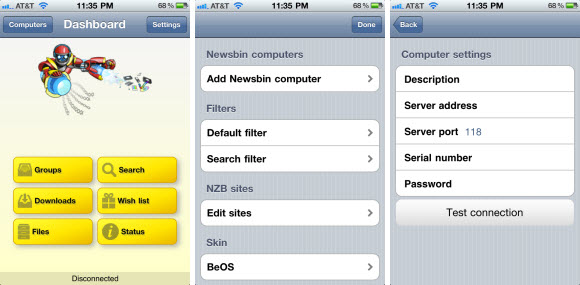
The first time you launch NBRemote you’ll need to add the connection back to your computer to access Newsbin remotely.  To do so go to Settings and then Add Newsbin computer:

Fill in the Computer settings screen as follows:
  • Description:  Any name you want for the connection.
  • Server address:  The IP address or your computer.
  • Server port:  Only change if you chose a port other than 118
  • Serial number:  Enter your Newsbin Pro registration code
  • Password:  Enter the password you chose a moment ago in Newsbin Pro.

When your finished hit the Test connection button.  If all goes well you’ll see ‘Connected Successfully’ after a few seconds.  In my case I got another message the first time around.  An error stating ‘Authentication required’.  As usual I had fat fingered some information.  In this case the serial number.  A quick fix followed by ‘Connected successfully’.  The other common error you might see is ‘The connection timeout has expired’.  In that case confirm the IP address is entered correctly.  Otherwise you’re ready to use NBRemote.

Launching NBRemote : Connecting to Newsbin

The first thing you want to do after opening NBRemote each time is connect to your Newsbin remotely.  To do so tap on Computers and then the name you gave to your system.  Note that you can set up NBRemote to remotely control more than one computer.  Once connected we went right to the Search area.

NBRemote Search Functionality

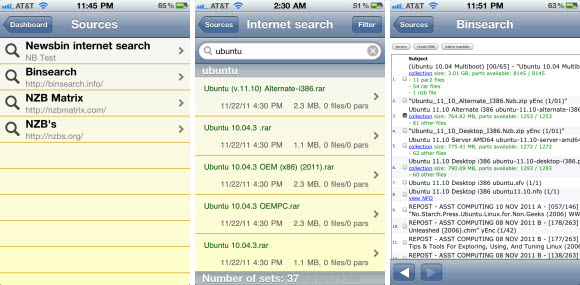
I expected that NBRemote would support the Newsbin Internet Search feature and it does quite well.  However, I was surprised by the other Usenet search options including Binsearch, NZBMatrix and Nzbs.org.  I tested both the Newsbin search and Binsearch.  Here are some screenshots:

I searched for ‘Ubuntu’ using Newsbin internet search and Binsearch.  Because let’s face it.  You can never have too many Ubuntu distros.  We played a little with the filter options for the Newsbin search and then tested out Binsearch which is one of our other favorite Usenet search engines.  Next it was time to download.

Downloading with NBRemote

I chose a Ubuntu distro from Binsearch and created the NZB file.  Then downloaded it to my PC remotely from NBRemote.  Later I downloaded a picture of a train directly to the iPhone and opened it.  In the files area you can view local files (on your device) or Newsbin files (on your computer).  There is also an optional setting to integrate NBRemote with your Dropbox account.

Browsing Newsgroups with NBRemote

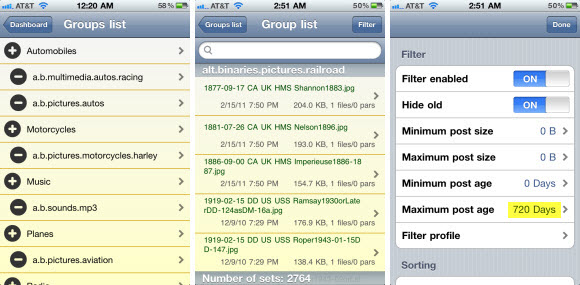
Along with searching for Usenet content by topic the NBRemote also lets you browse through newsgroups.  As you would from inside Newsbin.  Simply tap on ‘Groups’ from the NBRemote home screen.  We chose the alt.binaries.pictures.railroad group to test and found a number of results after tweaking the filter options.

By default the NBRemote filter is enabled and set to only show posts between 0 and 1 day old.  We noticed the same when testing hte Newsbin internet search feature.  Since that didn’t net many results from the train group we extended the filter out to it’s max number of days which is 720 days.  Then we got nearly 3,000 results.

In the future I look forward to diving deeper into NBRemote.  Some of the other features include Dropbox integration and an option to add any search site you like.  Basically you add the name and URL to the search menu and use the engine of your preference.  You can tell a lot of planning went into the app.  Especially at such an early stage.  Definitely a fun project to track and an app we will use.

Hopefully you’ve enjoyed my review / guide / ramblings about NBRemote.  It really is a cool app to remotely control Newsbin.  I hope you’ll try it out and let us know what you think.  As always you can visit Newsgroup Reviews to learn more about Usenet and follow us @NewsgroupRevs to share your thoughts.

NewsLeecher SuperSearch It Feature

NewsLeecher is hard at work on their version 5 release.  With new betas posted in October and November.  The betas have included a number of new features, tweaks and most recently a holiday theme.  A couple weeks ago we shared our impressions of the new Repair & Extract Destination Manager.  Now we’d like to share our thoughts on the other major update in the NewsLeecher v5 beta 7 release.  Namely the SuperSearch It feature.

First let’s take a look at the SuperSearch It feature description from the NewsLeecher v5.0 Beta 7 notes:

A new feature named SuperSearch It, has been implemented for all tab views in NewsLeecher. The feature makes it very fast and easy to use SuperSearch for searching specific groups, article subjects and poster names. The feature also makes it very fast to browse entire groups through SuperSearch, without having to fetch headers for the specific group. Feature can be accessed by the ‘Flash Icon’ buttons, or the F4 keyboard shortcut.

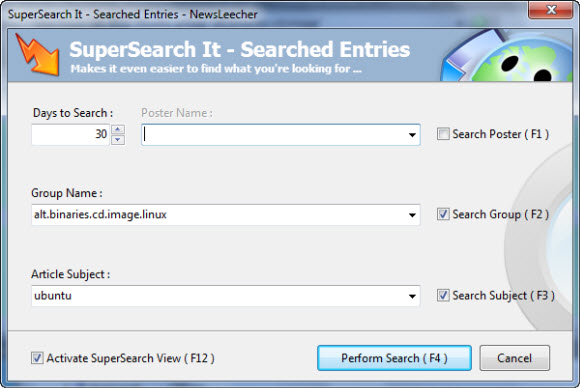
The first thing you want to do is download and install NewsLeecher 5 beta 7 or higher.  Beta 8 includes the holiday theme.  To access the new feature you’ll want to open NewsLeecher and either click on a lightning bolt “flash icon” button or press F4.  Either will display the following SuperSearch It screen:

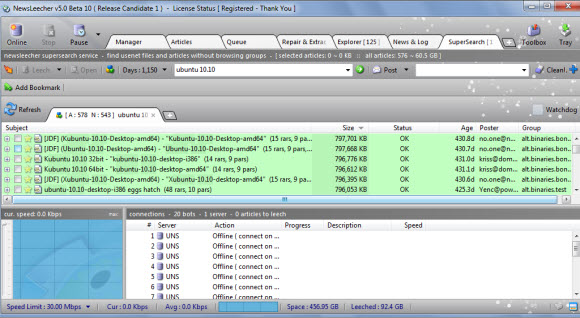
We found the new SuperSearchIt feature quite helpful for finding content in a specific newsgroup without downloading headers.  Either by topic “article subject” or by poster name.  Notice that “days to search” defaults to 30.  Depending on your topic of interest you can definitely increase that number.  We chose “ubuntu” as our topic of interest and searched just within the alt.binaries.cd.image.linux group for results in the last 30 days.

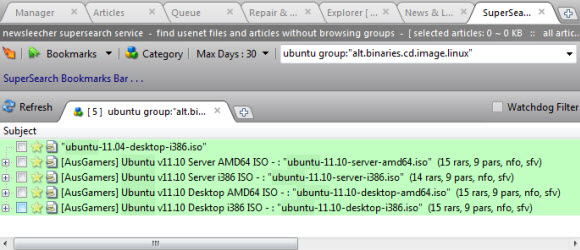
As you can see our search netted 5 results.  You might also notice how the query is structured as ubuntu groups:”alt.binaries.cd.image.linux”.  Once you get the hang of it you can easily type in your own queries.  Adjusting the number of days to search via the dropdown to the left of the search field.

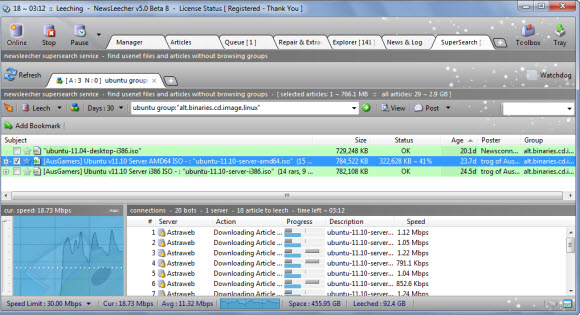
While our example was pretty simple it illustrates the usefulness of the new SuperSearch It feature.  Remember to use the new features you will need NewsLeecher version 5 beta 7 or higher.  Customers can download the latest beta directly from their site.  Those new to the reader can make use of their free trial to test the client.

Visit Newsgroup Reviews to compare Usenet clients and follow us @NewsgroupRevs for the latest deals.
Usenet Clients : Beginners Guide to Newsreaders

Those new to Usenet can spend a lot of time finding the right Usenet client.  It can be a challenge with all the options out there.  Which is best… a web Usenet interface?  web server client?  traditional newsreader?  After years of downloading from Usenet we have our favorites and will share several of them.  That way you have a wide assortment of choices.  With a list of both free and premium newsreaders to choose from.

We’re going to break out our newsreader recommendations into categories.  First covering clients we find the most useful for those new to Usenet.  Followed by some options for those more comfortable with the how Usenet works.  These typically have more options but also require more technical knowledge to fully take advantage of the benefits.  First let’s take a look at some good choices for new users.

Usenet Clients for those new to Usenet

For those who haven’t downloaded from Usenet before the task of choosing a client can be a challenge.  This guide will help you get set up quickly and fully enjoy newsgroups.  First consider your technical background and whether you want to install a newsreader or browse and download from within your web browser.

If you prefer web browser then look to Easynews as they have the best web interface by far.  Those new to Easynews can test the service free for 14 days.  Easynews offers both web and NNTP access.  So as you become more comfortable you can choose to connect via newsreader or the web interface.

Those who prefer a software client might consider services that include their own clients.  Our favorite is Newshosting.  The advantage being that the Newshosting client comes pre-configured and is very easy to use.  Search for content, preview and download.  The client even takes care of file repairs and extraction.

Newshosting is our favorite all-in-one Usenet service.  They offer unlimited Usenet access with free Newshosting client and built-in Usenet search for just $9.99 a month or $99 a year.  Definitely one of the best values around.  The Newshosting newsreader comes pre-configured and is available for Windows, Mac and Linux.  Read our Newshosting client tour to learn more about the browser.

Binverse is another all-in-one Usenet service.  Their accounts are more expensive than Newshosting and retention a bit lower.  Yet the client is quite good and is available for both Windows and Mac clients.  Those new to Binverse can test the service free for 3 days.  Including up to 60 GB of Usenet downloads.

Usenet clients for newsgroup novices

As you get more comfortable with Usenet the number of newsreader options widens.  Those listed above are still great choices but you also have some other quality clients to choose from.  These newsreaders typically take more knowledge to configure but also offer some pretty cool advanced features.

Newsbin Pro has been a favorite client of ours for years.  Newsbin is intuitive and let’s you configure your Usenet experience.  Set up multiple news servers, search for content using the Newsbin internet (Usenet) search feature and let the client take care of the rest.  Newsbin costs $20 and includes free upgrades for life.  You can download a free 10 day trial to test the client.

Newsleecher is another very good Usenet client.  We especially enjoy their SuperSearch Usenet engine.  The reader is full featured and includes a number of tweaks for advanced users.  You can download a free trial of Newsleecher and test the client free for 14 days.  Newsleecher costs $20-$30 a year based on whether you just get the client or add the SuperSearch feature.  SuperSearch makes searching Usenet very convenient.

Binreader is one of our favorite free binary Usenet clients.  The newsreader is simple to use and includes portable versions so you can run it from a thumb drive.  Having a portable Usenet client is a nice convenience.  Binreader is free to download for Windows, Mac and Linux.

Usenet clients for advanced users or highly technical

Some might skip straight to this category.  If you have lots of technical knowledge and don’t mind configuring scripts then these options might be for you.  You will find a lot of help in the SABnzbd forum from other members as well.  Since SABnzbd is free you can always run it in addition to one of the above clients for awhile.

SABnzbd is a favorite of many veteran Usenet fans.  The web-based client runs as a web server and allows you to download binary files.  With a number of very good add-ons available.  The free client is open-source and available for download on Windows, Mac or Linux.  This one takes some time to tweak and configure.

The power of SABnzbd doesn’t stop with the browser.  Since the client is open-source and insanely popular a number of add-ons have been developed.  You can check out some of the top choices including nzbdStatus, SABConnect and Sick Beard from the SABnzbd home page.  We also enjoy the SABMobile iPad app.

As you configure and tweak the various add-ons and scripts SABnzbd takes on a life of it’s own.  We know a lot of Usenet veterans who love the client while others find it difficult to configure.  For that reason we don’t always recommend it to first time Usenet users unless you have a strong technical background.

Visit Newsgroup Reviews to learn more about Usenet and follow us @NewsgroupRevs for the latest deals.

NewsLeecher Christmas Theme in v5 Beta 8

The latest edition of NewsLeecher – Version 5 Beta 8 – has a new Christmas theme.  The xmas theme is cool.  With snow dropping from the top of the page.  We dig it.  Those who prefer another look can disable the theme.  We look forward to future NewsLeecher themes.  Newsleecher customers can grab the latest beta directly from the NewsLeecher download page.  Those new to the Usenet client can download a 14 day free trial.

The xmas theme is just one of the new features in the latest NewsLeecher beta.  Here’s a full list of changes directly from the NewsLeecher history log:

NewsLeecher v5.0 Beta 8
Release Date: 2011-11-16 17:42:31

*: ---------------------------------------------------------------
   -- Larger Change - Redesigned User Interface -- ---------------
   ---------------------------------------------------------------
   The graphical user interface in NewsLeecher has been changed
   quite a bit, to make the application more streamlined.
+: Implemented an xmas theme for NewsLeecher. The animated
   snow, that is part of the theme, can be turned off via this
   setting:
   Settings -> Adv. Nerdy Tweaks -> GUI Theme Animations Allowed
   This, and future themes, can be turned off complete from:
   Settings -> Adv. Nerdy Tweaks -> GUI Theme Allowed
+: The Repair & Extract Destination Manager can now also match
   PAR2 set names against group names, to decide the destination
   folder for extraced archives.
+: Implemented a GUI compact mode feature, that, when enabled,
   will resize some of the toolbars in NewsLeecher, so they take
   up less space on screen. Can be accessed via settings:
   Settings -> Adv. Nerdy Tweaks -> GUI Compact Mode
*: Vastly reduced the CPU cycles used by NewsLeecher, when lots
   of sets were present in the Repair & Extract view.


Visit Newsgroup Reviews to compare Usenet clients and follow us @NewsgroupRevs for the latest news.

nzb4droid Android Mobile Usenet App

The android market continues to explode with nearly 325,000 apps already available.  One of the recent additions includes nzb4droid.  The nzb4droid app allows Android users to download from Usenet and save the files directly to their device via sdcard.  The nzb4droid app costs $4.04 and is available for Android 2.1 or higher.  For more information or to download the app visit the nzb4droid page on the Android Market site.

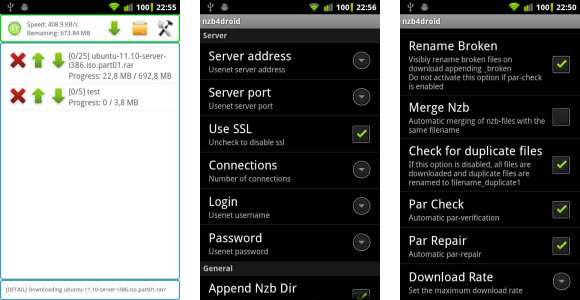
The nzbdroid app takes care of PAR repairs and the unRAR process.  Be aware though that each can take some time as the process is intensive.  Especially for larger downloads.  As you can see the application has some nice configurable features.  You can enable SSL and even choose an alternate port if desired.  From there you can set the number of connections and even a maximum download rate.  With additional Par options.

Not to confuse anyone.  nzbdroid is NOT a Usenet provider.  It is a mobile Usenet app to be used with your existing service.  If you need Usenet access take a look at the free trials and special offers sections of NGR.  Along with lots of hands-on reviews and guides.  Also please let us know what you think of nzbdroid.

Visit Newsgroup Reviews to learn more about Usenet and follow us @NewsgroupRevs for the latest offers.

NewsLeecher Repair & Extract Destination Manager

Repair and Extract Destination Manager is one of the new features in NewsLeecher version 5 beta 7 released late last month.  The new R&E Destination Manager feature allows users to choose where specific articles are extracted based on keywords in the subject of the articles.  That might sound confusing but we’ll show an example in a moment.  Those who download a lot will want to consider the new R&E Destination Manager.

First here’s a description of the Repair & Destination Manager from the NewsLeecher history log:

A new feature named “Repair & Extract Destination Manager” has been implemented. This feaure makes it possible to tell Repair & Extract where to extract specific downloaded articles, based on customizable keywords matched against the articles subjects. The feature replaces the current settings used to specify where R&E should extract archives, but we’ve tried to make it backward compatible, so your R&E extract settings remain intact, until you decide to change them through the newly implemented manager.

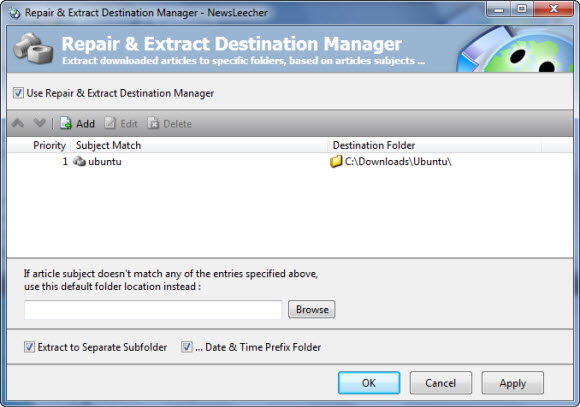
First download and install NewsLeecher 5 beta 7.  To access the new feature you’ll want to open NewsLeecher and go to Settings and then Repair / Extract.  Then you’ll notice a large button that says Repair and Extract Archive Extract Destination Manager.  Clicking on the button will bring up the following screen:

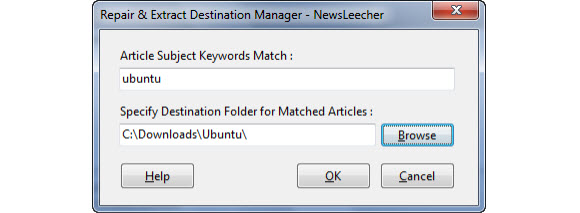
The first time you enter this screen the table will be blank.  To add entries simply check the Usenet Repair and Extract Destination Manager check box.  Then click the Add icon.  The following screen will appear:

As you can see we added an article search keyword match for the term ubuntu and specified a new destination folder.  That’s really all there is to it.  Setting up custom destination folders is easy and will help you organize files.  Especially for those who download a lot of content of the same subject.

Visit Newsgroup Reviews to compare newsreaders and follow us @NewsgroupRevs for the latest deals.