Alt.Binz 0.39.4 Free Download

The recent release of Alt.Binz 0.39.4 marked the first time in almost five years that Alt Binz has offered a new free version of their popular newsreader.  There are a couple limitations.  Search engines have been removed and you’re restricted to one theme.  Otherwise Alt.Binz 0.39.4 is fully functional.  Since the last free version 0.25.0 in 2007 there have been several updates.  Visit altbinz.net to download the new client.
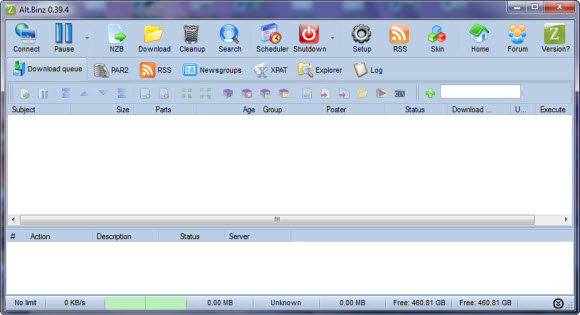
As mentioned above the release of Alt Binz 0.39.4 is the first free version of the newsreader to be offered in nearly five years.  So we suggest those still running version 0.25.0 take a moment to review the version history.  As Alt.Binz development has been steady over the years.  Adding hundreds of new features and tweaks between the 0.25.0 and 0.39.4 release.  You can also view screenshots of different versions along the way.

As with previous free versions you have the option of donating.  We highly encourage those who enjoy Alt.Binz to donate to the project.  It will help further the development of the client.  Those who donate will gain full featured access along with all new releases.  Visit the Alt.Binz donation page to learn more.

Visit Newsgroup Reviews to learn more about Usenet and follow @NewsgroupRevs for the latest specials.

Join the GrabIt 2.0 Private Beta

Shames, the development team behind GrabIt newsreader is working on a new release.  As we wrote about May of last year the GrabIt 2.0 user interface had to be completely recoded.  It looks like the programming work is done and they’re now looking for Usenet fans to help test the new GrabIt 2.0 beta.  You can sign up for the private beta here and be one of the first to check out the latest GrabIt 2.0 client for free.

We look forward to sharing impressions of the new GrabIt 2.0 client as the beta progresses.  In the meantime we encourage you to sign up for the private beta and share your feedback to help move the client toward public release.  Once again to sign up visit the GrabIt 2.0 private bate page.  There you’ll enter your email address.  When the private beta begins you’ll be one of the first to have an opportunity to test the new GrabIt 2.0 client.

Visit Newsgroup Reviews to learn more about newsreaders and follow @NewsgroupRevs for the latest offers.

Try GetNZB Usenet Downloader Free

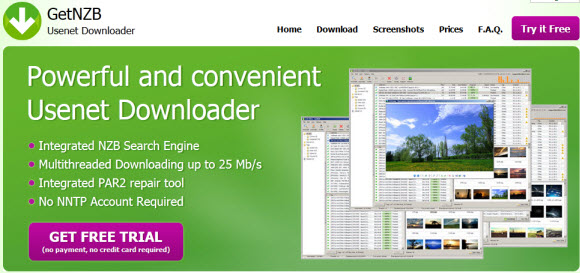
The team over at Nzblord is at is again.  This time around instead of a web Usenet interface they have developed a Usenet downloader for Windows.  The newsgroup client includes everything you need to search for nzb files, download, repair and extract the resulting content.  Unlike most newsreaders, GetNZB is tied to it’s own service.  Those new to GetNZB can download 100 MB free in order to test the Usenet service and client.

We had an opportunity to test GetNZB with a premium account and were pleased with the results.  We started by searching for a Ubuntu distro to download.  GetNZB members can use FindNZB.net, Nzbindex.nl or Nzbclub.com to search for content from within the Usenet client.  We settled on a 820 MB Ubuntu file from October of 2009.  Putting the files at around 880 days old.  GetNZB allowed us to choose which parts of the nzb file to download and then took over from there.  Performing as advertised GetNZB downloaded the files at speeds around 25 Mbps.  The resulting download was all in tact and didn’t need any PAR repairs.

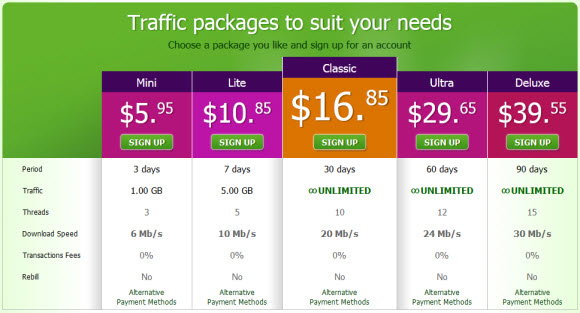
Not to be confuse anyone the GetNZB Usenet client is free but you must pay for a Usenet account to download more than the 100 MB free trial.  GetNZB offers a number of Usenet accounts based on term and download speed.  Here’s a closer look at GetNZB’s newsgroup offerings:

  • Mini (3 days and up to 1 GB, capped at 6 Mb/s) – $5.95
  • Lite (7 days and up to 5 GB, capped at 10 Mb/s) – $10.85
  • Classic (30 days, unlimited downloads, 20 Mb/s) – $16.85
  • Ultra (60 days, unlimited downloads, 24 Mb/s) – $29.65
  • Deluxe (90 days, unlimited downloads, 30 Mb/s) – $39.55

Taking a close look at the GetNZB plans we notice the ‘Mini’ and ‘Lite’ plans are pretty expensive given the limitations.  While the monthly unlimited plan is still high compared to some of our favorites.  Then you get down to the 60 and 90 day accounts.  We like the ‘Deluxe’ account the best.  Both for price (at $13.18 a month) and the upgraded performance cap of 30 Mb/s.  Regardless of which plan you choose the client is included free.

Visit Getnzb.com to sign up or learn more about their new Usenet downloader and service.  You can also download the Usenet client for free here.  Afterwards you can open the software and search for content but will need to register for a free trial to test the service.  The client will prompt you to register or sign up.

Visit Newsgroup Reviews to learn more about Usenet.  Follow us @NewsgroupRevs for the latest specials.
Save 75% Off Power NZB Android Usenet Client

Are you looking for an Android Usenet app?  If so you might want to check out the newly released Power NZB app.  The first 100 users to download the Android binary Usenet client will save 75% off the normal price.  Bringing the cost down to just $1.25.  You can download Power NZB directly from the app’s Android Market page.  So far all of the reviews have been positive.  Along with some good recommendations for future features.

Here’s a description of Power NZB from their Android Market page:

Power NZB is a new binary Usenet client for Android, enabling download, par2 repair and unrar of binary content.

This is a first release, if you have any issues PLEASE contact me so I can fix them A.S.A.P. Send me any NZB files you think may not work. 🙂

Features:
*Queue multiple NZB files
*Up to 8 simultaneous downloads
*Move items up and down queue
*Par2 verification and repair
*Unrar support
*Download speed graph

You need to download the free par library for par2 functionality.

Visit Newsgroup Reviews to learn more about newsreaders and follow @NewsgroupRevs for the latest offers.


Newsbin Pro 6.3 Auto-Sutdown Feature

Earlier this week we discussed Newsbin adding video sampling to their latest betas.  Since then the team has released Newsbin Pro 6.3 Final.  Not only can users enjoy the new video sampling feature, the Usenet client now has several auto-shutdown options.  Giving you even more control over your downloads and Windows environment.  If you haven’t already installed the latest version visit the Newsbin download page and enjoy the cool new features.  As always new releases are free for anyone with a license.  Those new to the popular Usenet client can test it free for 10 days and then purchase a lifetime license for just $20.

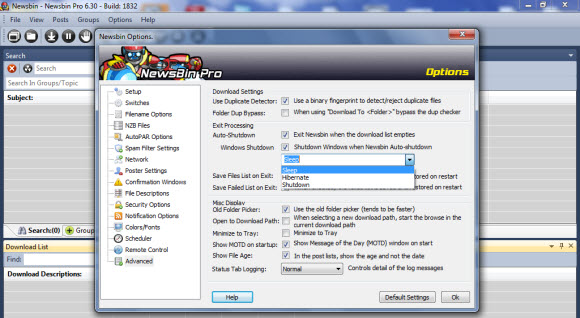
Setting up the new auto-shutdown feature and configuring it to meet your needs is very easy.  Just launch Newsbin Pro 6.3 and click on Options and then Options again.  Once the Newsbin options screen opens click on the Advanced tab to the bottom left. That will bring up the screen shown above.

To enable the new feature simply check the Auto-Shutdown box.    That will cause Newsbin to exit when your download list empties.  From there you have some additional options for Windows.  Check the Windows Shutdown box and choose from the dropdown list that includes Sleep, Hibernate and Shutdown to have Windows take any one of those actions after Newsbin Pro closes.

Give the latest edition of Newsbin Pro a test drive.  New and experienced Usenet fans alike will find the client to be intuitive.  Advanced users will also appreciate the extra features and tweaks to further enhance your Usenet experience.  Download a free trial of the 32-bit or 64-bit version of Newsbin 6.3 final release.

Visit Newsgroup Reviews to learn more about newsreaders and follow @NewsgroupRevs for the latest offers.

Newsbin Pro 6.3 Adds Video Sampling

Late last year we reviewed a new app for Newsbin that let’s users control the newsreader remotely from iPhone, iPad or iPod Touch.  The NBRemote app enhances the experience for iOS users.  Since then Newsbin has been busy working on new features for their popular Usenet client.  Rolling out new versions including Newsbin Pro 6.3 Release Candidate 2 on February 24th.  One of the new features in Newsbin 6.3 caught our eye.  The ability to sample video files while downloading.  You can download a 10 day free trial of the client.

For those who haven’t used Newsbin in awhile the look has changed quite a bit.  We really like the clean layout and flexibility of the client.  As mentioned above Newsbin 6.3 (starting at beta 5) added support for video previews along with a number of other new features, enhancements and bug fixes.

Here’s a change summary for Newsbin 6.3 RC 2 from their beta page:

  • New Sample mode allows you to view the beginning of a video before the entire rar set completes downloading. Available from the Download tab or the Files tab, both in the toolbar and in the right-click menu.
  • Growl support for notifying on certain events.
  • Made retries configurable. Should help for iffy connections. Default is 2. Can modify under Options/Setup.
  • New column in Groups tab called “New Records” lists number of new posts since the last load.
  • Better progress reporting in Download tab
  • Fixes to resolve memory problems on 32 bit systems
  • Ctrl-Y to force a download now bypasses spam filters too (Add to Download List – Bypass Filters)
  • New authentication scheme for Remote Control Interface so you don’t have to enter your Newsbin key anymore (which is a pain on an iPhone).
  • Expanded Unicode (UTF-8) support for folder names and throughout program.
  • Added ability to have Newsbin either shutdown your PC, make it go to sleep, or hibernate when the download list empties.

We highly encourage you to check out the latest edition of Newsbin Pro.  Those who have a license can always download the latest version for free directly from Newsbin.com.  Those new to the Usenet client can give it a test spin by downloading the free 10 day trial.  Then a license is just $20 and includes free upgrades for life.

Visit Newsgroup Reviews to learn more about Usenet clients and follow @NewsgroupRevs for the latest deals.

Usenet Quick Start Guide

The primary goal of NGR is to provide comprehensive Usenet coverage.  Including all of the active Usenet providers, newsreader clients and search sites.  Yet we understand that some of you don’t want to take the time to read several reviews and consider all the options.  You’d rather be up and running on Usenet asap.  If you fall into that category then this Usenet quick start guide is written for you.  We’ll focus on Newshosting since they offer an excellent Usenet client and unlimited Usenet to our readers for just $9.99 a month or $99 a year.

First we’d like to give you some background on the Newshosting service and their popular newsreader client.  Newshosting is a leading Usenet provider and offers everything you would expect and then some.  From high retention and completion to 256-bit SSL, news servers in the U.S and Europe, free newsreader with built-in Usenet search, uncapped speeds and unlimited Usenet access.  Their Usenet client supports Windows, Mac and Linux.  The software takes care of everything.  Search for content, preview, download, repair and extract.

Step 1 – Sign Up for Newshosting’s Unlimited Usenet Plan

Joining Newshosting is simple.  New members save up to 44% off their unlimited plan.  With unlimited Usenet downloads for just $9.99/mo. or $99 a year.  The discount in recurring so enjoy the savings for the life of your account.  To learn more and to sign up visit their Newshosting NGR special page.  The registration process is simple.  Just enter your name, email address, desired username, password and payment information.  Newshosting offers PayPal and credit card payment options.  Shortly after signing up you’ll receive an email with everything you need including a link to the Newshosting client download.

Step 2 – Download and Install the Newshosting Usenet Client

By now you’ve received your welcome email from Newshosting.  In it you’ll find everything you need to get started.  Including a link to download their Usenet client.  For future reference you can also log into the Newshosting.com site anytime and access the client download page from within the control panel.

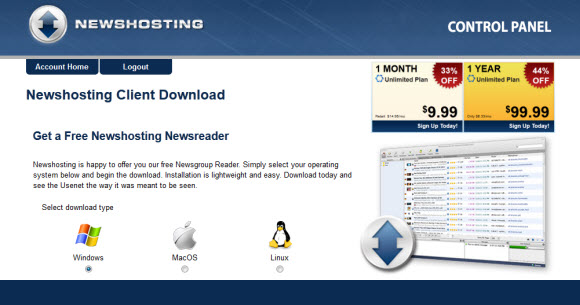
Once you’re on the Newshosting client page simply click on the radio button for the version you’d like to download – Windows, Mac or Linux.  If you have more than one machine Newshosting will let you use the client free on multiple computers and operating systems.  As long as you only connect from one system at any given time.  So those with Windows and Mac systems for example can try out the client on both.

There isn’t really anything to go over in terms of the install.  You’ll download the software based on operating system and then run the file to install the Newshosting client.  The only thing you’ll need handy is your username and password.  Which you can have the client save for future launches if you’d like.

Step 3 – Configuring the Newshosting Usenet Client

If you’re in a big hurry to download something have at it.  The Newshosting client is pre-configured and ready to go.  In addition to the default settings here are a few additional tweaks that we enjoy and find helpful.  To access the Newshosting client settings open the software and click on Options and then Settings.  From there you’ll see several options with associated images to the left of the screen.

Tip #1 : Enable SSL – if you would like to enable 256-bit SSL for all your Newshosting connections just click on the Connection icon and check the “Prefer SSL connections if available” box.  For the SSL port we recommend port 443 since in some cases it will help protect against ISP throttling.  If you want to protect your online privacy beyond just Usenet connections then we suggest you consider a VPN service.

Tip #2 : Search Providers – Newshosting includes a built-in Usenet search engine.  You can search across their entire span of retention and newsgroups for content.  Along with the native Newshosting search they also include Binsearch.info as a search option.  Choosing between the two is very simple.  When doing a search you’ll see a magnifying glass icon to the left.  Click on it and you can choose between Newshosting and Binsearch.info.  Both work well and you can switch between them anytime.

Tip #3 : Download Folder – you can easily change the folder structure where Newshosting will save downloads.  To do so click on the Downloads icon.  Here you can set the main download folder along with preferences for subfolders.  Helping you sort content by newsgroup and/or date.

Tip #4 : PAR2 Repairs and UnRAR – the Newshosting client can take care of repairing partial or damaged files.  Along with extracting the resulting contents.  You can control how Newshosting handles both the PAR2 repairs and UnRAR actions from the Downloads tab in the settings area.

Tip #5 : SafeSearch Feature – Newshosting doesn’t filter search results by default.  Meaning you might run across some adult content when searching newsgroups.  If you would like to reduce the amount of adult content in search results then enable the SafeSearch feature.  Those who want their Usenet experience to remain uncensored can simply skip this step.

How’s that for a quick start for Usenet.  Within a few minutes you’ll be downloading from newsgroups like a pro.  If a friend mentioned needing additional software, newsreader, WinRar, QuickPar, etc. you can skip all of that.  Along with finding a good NZB search site.  The Newshosting client takes care of everything.  You can go back to step 1 to get started or visit our Newshosting NGR special page and then come back for the quick setup tips.

Visit Newsgroup Reviews to learn more about Usenet and follow us @NewsgroupRevs for the latest guides.

SABnzbd Releases Version 0.6.14

What better way to cross the 3.5 million download mark than to roll out a fresh new release of SABnzbd.  Version 0.6.14 includes some new features along with bug fixes.  As always you can download the latest version of SABnzbd for free directly from their site.  The popular Usenet client is compatible with Windows, Mac OS X and Linux.  SABnzbd is open-source which brings lots of third party add-ons to further enhance the experience.

Here’s a list of updates in SABnzbd v0.6.14 from their blog post:

  • When retrying an URL fetch from History, remove the History entry
  • Fix job folder creation by Movie Sort when the Sort expression specifies one
  • Fix problem with retrieving ZIP files from some web sites
  • Improve detection of encrypted RAR files during download
  • When par2 fails and SFV-check enabled, verify using SFV files
  • Perform extra checks on job administration
  • Fix logging of pre-queue script result
  • Better support for Yahoo pipes
  • Accept NZB files containing incorrect dates
  • Make sure that paths coming from Sorting are normalized for the platform
  • Make newzbin “Get bookmarks now” button independent of automatic readout
  • Don’t reset watched folder path to default when it doesn’t exist at startup
  • OSX: Fix Growl issues
  • OSX: Show the promised 10 queue entries in the OSX menu instead of 9

Grab the latest version of SABnzbd and enjoy the new release.  They offer setup guides and have an active community.  So enjoy SABnzbd 0.6.14 as the project moves closer and closer to 4 million downloads.

Visit Newsgroup Reviews to learn more about Usenet.  Follow us @NewsgroupRevs for the latest news.

Newshosting Client – Pausing Individual Downloads

Today we’d like to talk about a new feature in version 1.2.1 of Newshosting’s Usenet client.  Namely the ability to pause individual downloads.  As we’ve recently covered other enhancements like download scheduler and NZB auto-import.  Pausing individual downloads gives you more control over you’re queue.  As you can pause a download to allow others to finish.  Especially useful if you’re waiting for a particular download to complete.

The Newshosting newsreader is free to all members.  Download the latest version for Windows, Mac or Linux.  If you aren’t already using Newshosting we highly recommend their service.  New members can enjoy unlimited Usenet access with the client and Usenet search for only $9.99 a month or $99 a year.

Newshosting Client : Pausing Individual Downloads

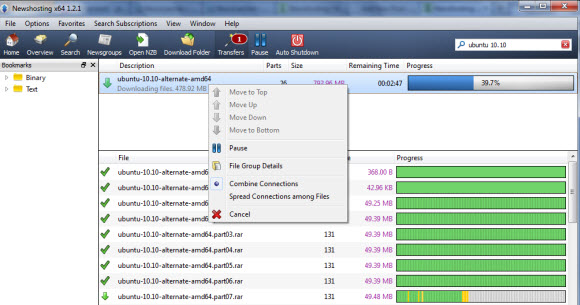
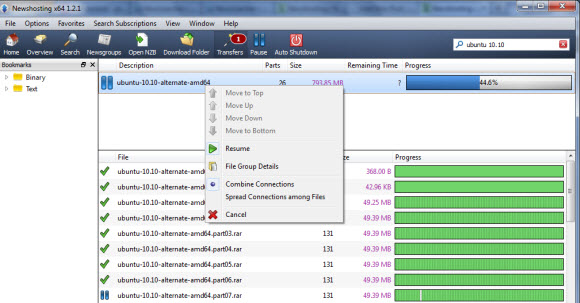
To pause individual downloads inside the Newshosting client you’ll want to take a look at your queue.  To do so simply click on the Transfers icon at the top of the screen.  From there you can pause and resume individual downloads.  Giving you more flexibility in managing your downloads in the queue.

To pause a download right click on the description and click on Pause.

To resume a download right click on the description and click on Resume.

That’s all there is to it.  Now you can easily pause and resume individual downloads.  Enjoy downloading!

Visit Newsgroup Reviews to compare newsreaders and follow us @NewsgroupRevs for the latest offers.

Newshosting Client : NZB Auto-Import

NZB auto-import is one of the new features in the latest version of Newshosting’s popular Usenet client.  Version 1.2.1 brought the newsreader out of beta and included NZB auto-import along with a new download scheduler and the ability to pause individual downloads.  Last Friday we talked about setting up the download scheduler.  Today we’d like to follow that up with a quick guide for configuring the NZB auto-import feature.

The Newshosting Usenet client is free to all subscribers.  You can download the latest version from their site.  If you aren’t already a Newshosting member we highly recommend you check out their special offer.  Enjoy unlimited newsgroup access with the newsreader and Usenet search for only $9.99 a month or $99 a year.

Newshosting Client : Configuring NZB Auto-Import

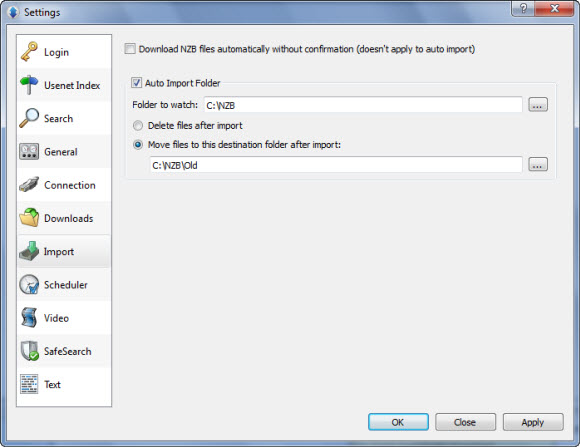
Setting up NZB auto-import in Newshosting’s client is a simple process.  Start by opening the client and focus on the menu options at the top of the screen.  Click on Options – Settings or press CTRL+, (ctrl comma).  After the settings box opens go down to the Inport icon on the left.  You’ll then see the following screen:

As you can see we’ve already configured the auto import folder in our screenshot above.  You’ll want to do the same.  First clicking on the Auto Import Folder checkbox.  Then choose the Folder to watch.  This is the folder the Newshosting client will ping for NZB files.  Anytime it finds an NZB file in the target folder it will automatically import it into the client.  Now you have two options.  You can let Newshosting delete the NZB file after import or move the NZB files to another folder after import.  Our preference was to move them to another folder.

That’s all there is to setting up Newshosting’s new NZB auto-import feature.  Enjoy downloading!

Visit Newsgroup Reviews to compare newsreaders and follow us @NewsgroupRevs for the latest offers.