Archives for 2010

NewsgroupDirect Block Sale : 50% Off Block Accounts

Our friends over at NewsgroupDirect are offering a special on block accounts.  Through 12 AM EST November 19 you can purchase non-expiring Usenet blocks for 50% off.
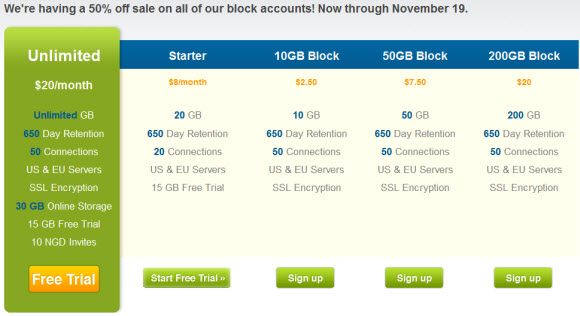

NewsgroupDirect offers a wide selection of block newsgroup accounts ranging from 10 GB all the way up to 500 GB.  Here is a list of their block plans along with the discounted pricing.

NewsgroupDirect Block Discounts:
– 10 GB block: $2.50
– 25 GB block: $4.00
– 50 GB block: $7.50
– 100 GB block: $12.50
– 200 GB block: $20.00
– 500 GB block: $50.00

NewsgroupDirect’s Block Usenet accounts include:
– 650+ days of binary retention
– 1,400+ days of text retention
– Access to over 107,000 newsgroups
– Up to 50 simultaneous connections
– Free 256-bit SSL encryption
– Server farms in the US and Europe
– 99%+ completion rate
– 24/7 tech support

Read our NewsgroupDirect review to learn more or visit Newsgroupdirect.com before November 19th for 50% off all block accounts.


Ngroups hits 800 Days of Binary Retention

Congratulations to Ngroups.net who just passed 800 days of binary retention.  The Usenet service also recently added Livedrive online storage to their feature list.


Ngroups surpassed 800 days binary retention earlier this week and is continuing to grow at 802 days at the time of this post.  In addition Ngroups is running their annual $9.99 Octoberfest special.

The Ngroups.net Octoberfest special includes:
– Unlimited Usenet access for $9.99 a month
– 800+ days of binary retention
– 1,095 days of text retention
– 99%+ completion rate
– Free 256-bit SSL encryption
– Free Livedrive unlimited online storage
– Access to over 110,000 newsgroups
– Up to 30 simultaneous connections
– Servers in the US and Europe
– 24/7 tech support

Read our Ngroups review to learn more about the service or sign up for their $9.99 Octoberfest special and enjoy!

NewsDemon $9.99 Smart Unlimited Usenet Special

We’re excited to share a new Usenet special from our friends over at NewsDemon.  The $9.99 NewsDemon Smart Unlimited account includes SSL encrypted Usenet access, 50 connections, free newsreader and online storage for just $9.99 a month.

The Smart Unlimited plan is meant for Usenet users who know their monthly usage.  The account comes with 300 GB of uncapped speed downloads plus unlimited access at 2 Mbps.  In our case we don’t download anywhere near 300 GB a month and understand a vast majority of you don’t either.  If you’re like us and download less than 300 GB a month or don’t mind downloading at 2 Mbps after 300 GB then the Smart Unlimited plan is a great value.

Here’s an overview of NewsDemon’s Smart Unlimited account:
– $9.99/mo. unlimited for life!
– 300 GB a month uncapped + unlimited 2 Mbps
– Free licensed newsreader (News Rover)
– Free 30 GB of online storage
– Free SSL encryption
– 700+ days of binary retention
– 1,400 days of text retention
– 99%+ completion rate
– 100,000+ newsgroups
– 50 concurrent connections
– News servers in the US and Europe
– 24/7 tech support

Read our NewsDemon review to learn more about the service or sign up for the $9.99 Smart Unlimited special and enjoy!

Mimo Usenet Guide Part 3 : Tips, Tricks & Shortcuts

Welcome to the third and final installment of our Mimo Usenet Guide.  In Part 1 we discussed how to install Mimo.  In part 2 we covered the top 10 Mimo newsreader features.  Now in part 3 we’re going to share some tips, tricks and shortcuts to help make your Mimo experience even more enjoyable.

We found a few shortcuts and keystrokes helpful in navigating and using Mimo newsreader rev. 0.1.9 and would like to share them.  We’ll keep the post updated with new tips so please send us any you might come across – feedback (at) newsgroupreviews.com.

Giganews Newsgroups

Mimo Tips and Tricks

1. Run Mimo in full screen mode

I know this one is simple but it helped so much.  When we first tested Mimo it felt like something was missing.  Mainly from a UI perspective.  Just like any new reader we had to figure our way around.  Finally someone said “Hey, we’re not running in full screen mode”.  Doing so made all the difference.

Running Mimo in full screen mode gave us access to the Mimo Taskbar.  Similar to the Windows taskbar it gives you access to important features and stats.  You can easily bring up Downloads, Group List or New Conversation (post to a text group).  Then on the right side you can see the current download speed along with recognition that SSL encryption and Giganews Accelerator are enabled.

2. Get to know the Usenet search filters

When you first open Mimo the “Search” tab is blank for the most part.  You can choose whether to search via Golden Frog, NZBIndex.nl or Find a Newsgroup.  However, you can’t set any search filters yet.

First do a simple search.  In our case we searched for “Ubuntu” which brought back lots of results along with filtering options to help narrow things down.  First you have the option to hide messages, images or files from the result pane.  You can also set a filter on the min/max file size in MB or GB and the max age in days.  All of which can be very helpful in narrowing the search results.

3. Get to know the Download screen

This isn’t a how-to-use Mimo tutorial so we’re not going step by step through using Mimo.  We’ll leave that Golden Frog or Giganews.  Rather we thought the download screen features were worth sharing and also had a couple comments to share for enhancing this area of Mimo.

The download screen is accessible via the Mimo taskbar at the bottom or the View menu or by pressing Ctrl + D.  Here you will see anything in your queue along with other files that have downloaded and any failures.  To clean out completed downloads simply right click and choose “Clear inactive downloads“.  If you want to open the files right click and choose “Show in Folder“.  A nice feature.  Remember Mimo automatically takes care of the RAR assembly and PAR recovery process (assuming PAR files were available).

If you queue up several downloads you’ll notice they all run at once.  It would be great to have the option to prioritize downloads.  In the meantime though you can pause and restart downloads.  We found the word “restart” confusing at first.  After downloading 50% the last thing we wanted to do was start over.  In this case though ‘restart” actually meant “start where the download was paused”.  We would have preferred the word “Resume download” but the outcome is the same.

4. Configuring Mimo server settings

There are a number of configurable settings in Mimo.  First of which are the server settings.  You can access them by clicking Tools – Server Settings or pressing Ctlr + Alt + S.

The first thing you will see on the server settings page are port settings.  All traffic through Mimo is SSL encrypted.  By default the browser uses port 563.  If your ISP happens to throttle that port you can change it to port 443.

The next option is maximum connections.  The default is set to 10.  As a Diamond member you can use up to 50 simultaneous connections.  For the best performance choose the minimum number of connections required to max your Internet connection or achieve your desired speed.  It can take a few tries to find the sweet spot but it’s worth it as running too many connections will tie up your system resources.

On the opposite end of maxing your speed through increasing connections you have the option to throttle bandwidth.  This can come in handy.  Especially if you share your Internet connection with others who would appreciate some bandwidth while you download.  Remember Giganews network is very fast so if you don’t want it maxing your line then configure this option.

5. Configuring Mimo download settings

There are also a few configurable settings for how Mimo treats your downloads.  You can access them by clicking Tools – Download Settings or pressing Ctlr + Alt + D.

The Target Directory and Spool Directory are set by default but you can change them to any folder you desire.  When files are downloaded Mimo will create subfolders based on the newsgroups.  We’re use to this approach and find it helpful in organizing downloads.

Next you have some options for automating Rar, Par and file clean up.  First is “Recover the files after download if possible“.  Set by default Mimo will use any Par files to repair damaged archives as necessary.  The second options is “Automatically unpackage RAR files“.  No more need for WinRAR or another third party utility to unRAR your downloads.  The last option is “Delete individual RAR archive parts after successful assembly“.  We chose to let Mimo take care of this as well.  Nice to keep downloads organized and more free disk space.

Now we’d like to share our Mimo shortcuts cheat sheet with you.  All the shortcuts are visible in the Mimo menu’s but we find it easier to have a sheet for reference since keystrokes are always faster than multiple clicks.  Feel free to use the list below or download a PDF of the Mimo Shortcuts cheat sheet from NGR.

Keyboard shortcuts for Mimo Usenet Browser

File Shortcuts:

Ctrl+T – New Search Tab
Ctrl+O – Open NZB File
Ctrl+Q – Exit Mimo

View Shortcuts:

Ctrl+L – Group List
Ctrl+D – Downloads
Ctrl+Shift+J – Status Console
Ctrl+W – Close Current Tab
Ctrl++ – Increase Font Size
Ctrl+- – Decrease Font Size
Ctrl+0 – Reset Font Size

Tools Shortcuts:

Crtl+N – New Usenet Message
Ctrl+Alt+S – Server Settings
Ctrl+Alt+D – Download Settings
Ctrl+Alt+I – Identity Settings
Ctrl+Alt+B – Block List Settings
Ctrl+Shift+Del – Clear Download List

That’s a wrap.  We hope you’ve enjoyed our Mimo Usenet Guide series and will become a regular visitor to NewsgroupReviews.com where we cover the entire Usenet industry including reviews, tutorials, free trials and special offers.  If you’re not already a Giganews Diamond member sign up now and receive a 14 day free trial and 50% off your first month!

Mimo Usenet Guide Part 2 : Mimo’s Top 10 Features

In part one of our Mimo Usenet Guide we discussed how to install the Usenet browser.  Now in part two we’re going to cover Mimo’s top 10 features.  What really makes the Mimo newsreader shine!

All newsreaders have their good qualities and opportunities for improvement.  These two categories can intersect as well since we all have our own preferences in how we browse newsgroups and download binaries from Usenet.  We preface the list with that comment because our “Top 10” might not be the same as yours.  Please share your thoughts with us as we continue to learn about the new browser.

Unlike most “Top 10 Lists” we’re not going to count down from 10 to 1.  No need to keep anyone waiting.  We’ll cover what we think is the coolest feature right from the start and go into detail for each feature on the list.

Giganews Newsgroups

Top 10 Mimo Newsreader Features

1. Built-in Usenet search engine

The Mimo browser includes two built-in Usenet search engines.  You can choose from the default Golden Frog engine or NZBIndex.nl engine.  We’re crossing our fingers for a future Binsearch engine.

When searching for binaries you have a number of options.  You can simply search by subject or add details like min/max file size, max age and whether to hide images or files.  Once you find what you’re looking for Mimo will take care of the download, repair and extraction of the files.

In addition to the Usenet search indexes you can also choose to “Find a Group” and search for newsgroups by topic.  For example if your interested in Corvettes you can search for the term “Corvette” and find the alt.autos.corvette group.  Then easily add it to your favorite groups.

2. Automated RAR assembly

We get questions from new Usenet users all the time asking what to do with the RAR files they download.  It can be difficult getting started with newsgroups if you don’t know the ropes.  Two of which are RAR and PAR files.  Using Mimo you don’t have to worry about what to do with the Rar’s because the newsreader will automatically assemble them for you.  Without the need for WinRAR or another third party application.

3. PAR2 recovery as needed

Assembling the Rar’s is only half the story.  At times you will need to repair the Rar archive with the use of PAR files.  Normally you would need a third party application like QuickPar.  With Mimo all you need are the Par’s which are typically included in large file sets.  If necessary Mimo will repair your download and extract it to the destination folder without your interaction.  Very cool!

It appears that Mimo downloads the full file set including all the PAR files and then uses them for repairing as needed.  Which is fine.  A cool future enhancement would be to only download the smallest Par to check and then just enough Par’s for the repair.  Since Giganews completion is very high you’ll find that many times you won’t need the Par’s at all.  When you do though they are a life saver.

4. Giganews Accelerator

Giganews Accelerator compresses header downloads.  With the GN Accelerator built into Mimo the newsreader can download headers up to 10 times faster than a normal Usenet client without the feature.  We offer a more detailed explanation of Giganews Accelerator on the main NGR site and Giganews offers a video tutorial in their Usenet University section.  Remember though the video guide walks you through setting up the Accelerator in other readers.  You will not need to do anything to use it in Mimo.

5. Image thumbnails / binary descriptions

When browsing a newsgroup you can simply click on any post that includes an image file and the image will show up below in the content pane.  A nice feature since you don’t have to open the download folder to view images.

Mimo does a very nice job of presenting information based on content type – text, image or binary for example.  Text posts are presented similar to an email which makes them easy to read.  For binaries the NFO contents will be displayed when one exists along with a list of included binary files.

6. Easily post to text groups

Let’s face it some newsreaders are just meant for binaries and don’t support text newsgroups.  Mimo isn’t one of those.  In fact if you can use popular email programs like Outlook or Thunderbird then using Mimo for text posts will be a piece of cake.

The first nice Mimo feature for text groups in threading.  Mimo will automatically thread related posts.  Clicking on any post or opening the thread will display the highlighted post in the content pane.  From there your email skills and instincts will kick in.

When viewing a text post you have options to reply to the newsgroup, reply via e-mail, forward via e-mail or block the poster.  Not than any newsgroup discussions ever get heated…

7. Filter text, binaries and images

If you subscribe to large newsgroups or look through a large set of Usenet search results then filtering is your friend.  It can really help narrow down the results and find what your looking for.  Especially considering Giganews holds around 2,700 days of text groups and well over 800 in binary groups.

Mimo has three images up at the top of the search pane, just beside the search box.  They allow you to hide messages (text posts), images (jpg, gif, etc) and files (binaries).  You can toggle each filter off or on at any time.

8. Import NZB files

Being able to import and associate NZB files with Mimo is important.  Especially if you have a favorite Usenet search engine other than Golden Frog or NZBIndex.  In our case we have a few favorites.  The folks at Golden Frog recognize that you might want to import NZB’s into Mimo.  Once you download the NZB file from any site simply double click it if you set the association during setup or click File – Open NZB File from within the browser.

9. Supports multiple SSL connections

Speed and security are always important.  We like to keep our connections capped as much as possible and know that all newsreader communication is encrypted.  Mimo makes both possible.

First for speed – Diamond customers can use up to 50 connections.  This is an area where some get confused.  By default Mimo is configured with 10 connections.  If that maxes your Internet connection then don’t increase the number.  It will only tie up more resources.  However, if you need more connections to max the speed click on Tools – Server settings and adjust the Maximum Connections until you find the right spot.

Security / privacy – all communication through Mimo is protected via 256-bit SSL encryption.  In addition as a Diamond customer you have free access to VyprVPN.  If you’ve not tried it yet you should.  It will help protect you outside of Usenet including web browsing and email.

10. Windows & Mac compatible

So many newsreaders are Windows-only.  Mimo coming out with Mac compatibility is a big win for Apple fans.  We’re slowly leaning toward Mac for web development so we appreciate the added support.  To be more specific Mimo is compatible with MAC OS X 10.6 or higher.

Stay tuned for part three of our Mimo Usenet Guide where we’ll cover tips and tricks to make your Mimo experience even more enjoyable.  If you’re not already a Giganews Diamond member sign up now and receive a 14 day free trial and 50% off your first month!

Mimo Usenet Guide Part 1 : Installing the Browser

This week we’re going to cover the new Mimo Usenet Browser that Giganews is offering free as part of their Diamond account features.  The Mimo client beta is open to all new and existing Diamond customers.

In part one of our Mimo Usenet Guide series we’re going to cover the installation of the client.  Then in part two we will talk about the Mimo Browser features and Golden Frog search.  Finally in part three we will offer some tips and tricks to make your Mimo experience even more enjoyable.

Mimo Usenet Guide Part 1 – Installing the Browser

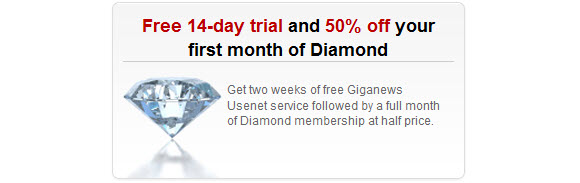
Already a Giganews Diamond subscriber?  If so then you’re all set.  Otherwise click on the image below for a two week free trial and 50% off your first month.

Now that you have a Giganews Diamond account you’ll want to download Mimo.

You can choose between the Windows and Mac versions of the Mimo client.  We chose the Windows download.

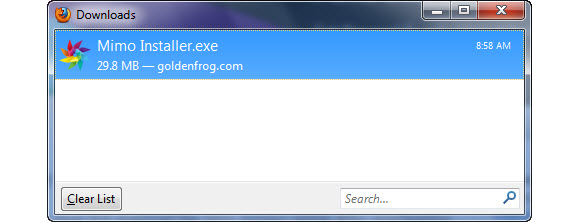
The Mimo Windows package is about 30 MB and took us around 10 seconds to download.  After the download is complete double click the Mimo Installer.exe file to start the installation.

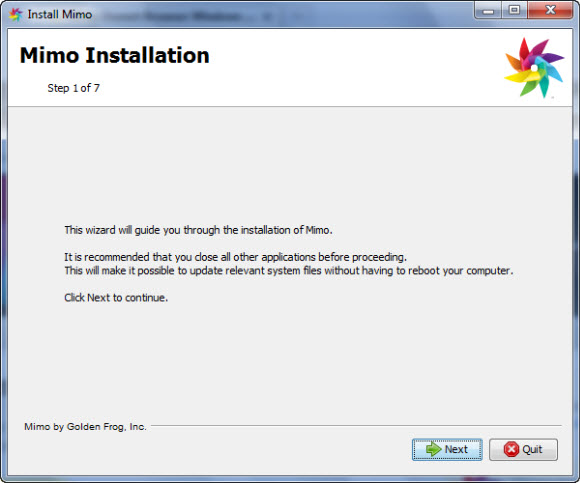
There aren’t any decisions to make in Step 1 of the install.  Click “Next” to move forward.


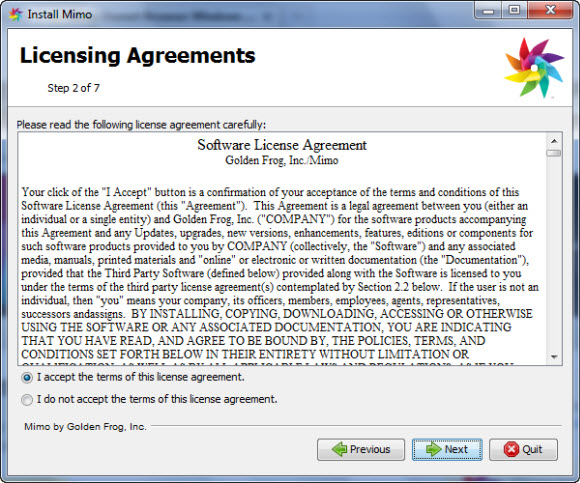
In step 2 you will need to agree to the Golden Frog Mimo license agreement.  Make sure to read and memorize as there will be a quiz!  Once you’ve marked the button to accept the terms click “Next” to continue.


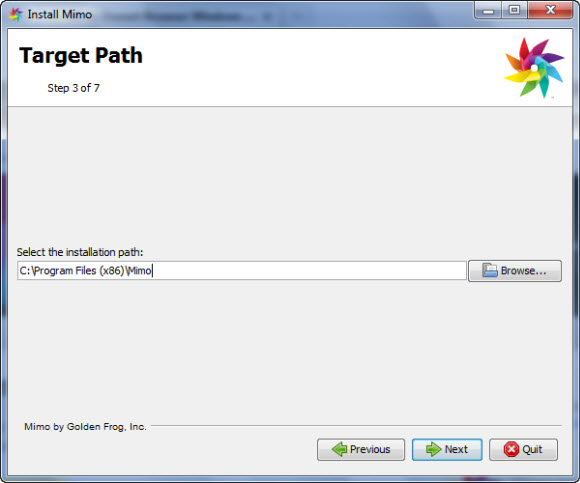
In part 3 of the Mimo install you can choose the installation path.  Make any desired modifications or leave the default path and click “Next” to move on.


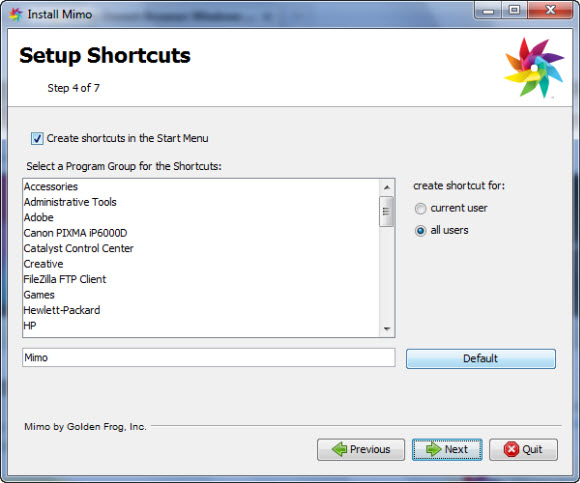
In step 4 you can decide what shortcuts you want setup for Mimo.  By default you will have a shortcut in the Start Menu and a Mimo program group added to be accessible by all users of the computer.  Make any necessary changes and click “Next” to continue.


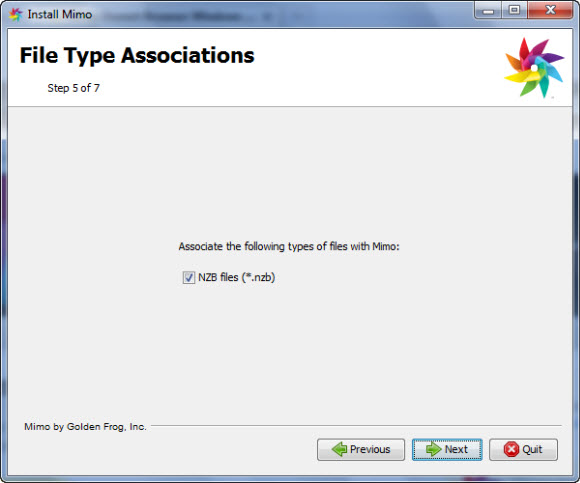
In part 5 of the install you can choose whether or not to associate NZB files with Mimo.  Assuming you plan to use Mimo as your primary Usenet client we suggest you let it add the .nzb association.


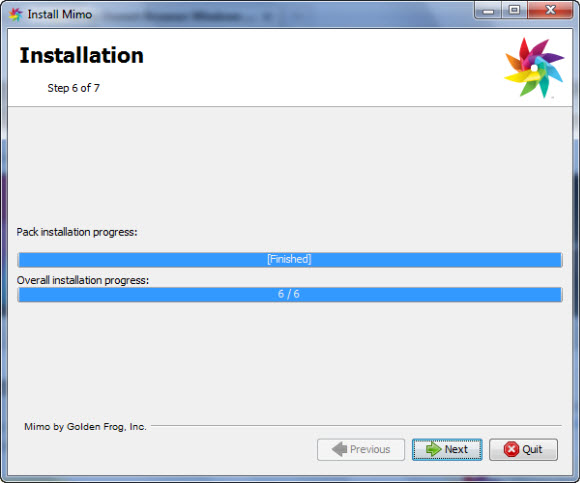
Now that Mimo has all the information necessary the installation will complete.


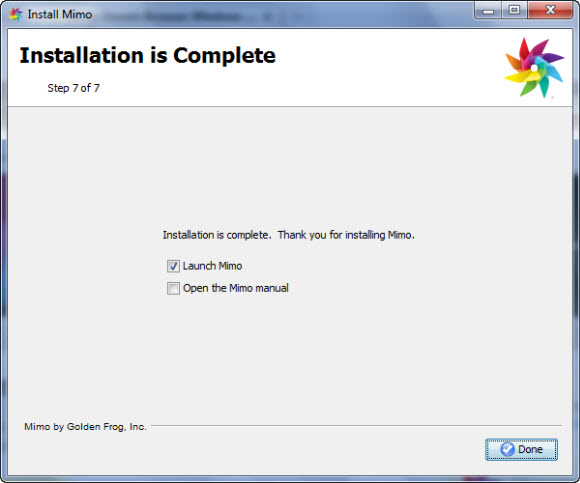
On the final screen you can choose whether you want to launch the Mimo client or open the Mimo manual.  We chose to launch Mimo.

The first time you launch Mimo it will ask for your Giganews user name and password and give you an opportunity to test the credentials.  Once completed you will be presented with the Mimo home screen above.

This is where we’ll start in our next post.  With an overview of Mimo features and Golden Frog Usenet search.  You can expect part 2 of our Mimo guide to be available in the next day or two.  In the meantime enjoy the new Mimo Browser.  If you’re not already a Giganews Diamond member sign up now and receive a 14 day free trial and 50% off your first month!

UseNetServer Over 700 Days of Binary Retention

Earlier this afternoon UseNetServer updated their homepage with an additional 50 days of binary retention.  Increasing from 650 days up to 700 days.  Nearing the two year mark!  The retention update is immediate so all current and new subscribers can take advantage of the extra two months of retention.


UseNetServer offers NGR customers a great value.  As the image above details our visitors can enjoy the UNS High-Speed Plus plan (unlimited Usenet + free SSL & UNS Global Search) for $10 a month or $95 a year.   Visit our UseNetServer special offer page for more details.

Here’s an overview of the UNS High-Speed Plus account:
$10/mo. unlimited Usenet for life!
$95/yr. unlimited Usenet for life!
– 700 days of binary retention
– 730 days of text retention
– 99%+ completion rate
– Free SSL encryption
– Free UNS Global Usenet search
– 85,000+ newsgroups
– 20 concurrent connections
– News servers in the US and Europe
– 24/7 tech support

Read our UseNetServer review to learn more or sign up for High Speed Plus NGR Special and enjoy!

Google Wave Dead : “Wave in a Box” Open Source

Back in early August Google announced they would be discontinuing development on Google Wave as a standalone effort.  Taking some of the collaborative technology and achievements on to other future projects.  Google had already open sourced quite a bit of Google Wave code and offered developer interaction through the Google Wave API and Google Wave Federated Protocol.

Was the lackluster reception of Google Wave a sign of it’s weakness or was the technology just ahead of it’s time?  In this case we enjoyed Wave and think you’ll see some the innovative ideas well into the future.  Unfortunately it just didn’t catch on.  Much like Bill Gates early efforts to promote interactive computing.  While the timing wasn’t right we’re seeing a huge shift to tablets and other touch screen devices now.  Perhaps parts of the Google Wave technology will thrive in future years as well.

Google has decided to make available an open source package with the Wave web server and client code called “Wave in a Box“.  According to the Google blog post:

This project will include:

  • an application bundle including a server and web client supporting real-time collaboration using the same structured conversations as the Google Wave system
  • a fast and fully-featured wave panel in the web client with complete support for threaded conversations
  • a persistent wave store and search implementation for the server (building on contributed patches to implement a MongoDB store)
  • refinements to the client-server protocols
  • gadget, robot and data API support
  • support for importing wave data from wave.google.com
  • the ability to federate across other Wave in a Box instances, with some additional configuration

We look forward to seeing how developers continue the effort to extend the existing Google Wave code. It will be interesting to see what areas might be influenced by the effort.  If you are interested in hosting your own Wave or taking a peak at the code stay tuned to the Google Wave Federation Protocol site.

Giganews to Increase Price on Diamond Accounts

Giganews recently rolled out new account pricing and added SSL to all plans.


Giganews added SSL encryption to all their account offerings.  Those who have Platinum accounts or were considering a Platinum plan now receive SSL without paying the extra $5 a month.

Here are the details of the changes currently in effect:
Platinum – unlimited Usenet + SSL + 20 connections – $24.99
Silver – 50 GB a month + SSL + 20 connections – $14.99
Bronze – 10 GB a month + SSL + 20 connections – $9.99
Pearl – 5 GB a month + SSL + 20 connections – $4.99

On January 1, 2011 Giganews will increase the price of Diamond accounts as follows:
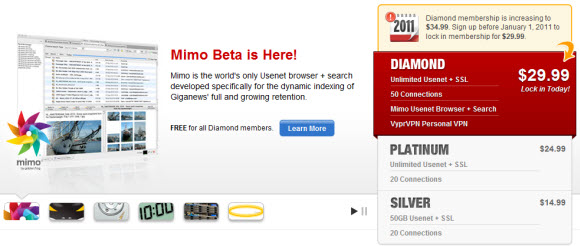
Diamond – unlimited Usenet + 50 connections + VyprVPN + Mimo w/search – $34.99

We’re disappointed by Giganews decision to increase the price of Diamond accounts.  Especially with so many Usenet providers offering unlimited Usenet for ~$10 a month.  To be fair Giganews has always been a premium service and they offer premium features like VyprVPN and Mimo.  We’re just not sure people are ready to pay $35 a month.

To learn more read our Giganews review or sign up for 50% off your first month of Giganews access.  Those who sign up for a Diamond account before the end of the year will continue to pay $29.99 a month rather than the new $34.99 price.

Giganews Releases Mimo Client with Usenet Search

Giganews is rolling out their new Mimo Usenet browser today.   Diamond members will have free access to the new client and Golden Frog Usenet search beta.  Other subscribers will need to upgrade to a Diamond account to gain access to Mimo.

We wrote about the Mimo technology preview back in June and will be providing more coverage on the final release in the weeks to come.

In addition to the Mimo release Giganews is revising some of their pricing plans on January 1, 2011.  Here is a summary of the changes:

Diamond accounts will increase in price by $5 to $34.99 a month and include extra connections, VPN access and the new Mimo newsreader.
Platinum accounts will include SSL encryption for the same $24.99 monthly price.  Where SSL excryption is currently a $5/mo. add-on.
Silver accounts (50 GB/mo.) will include SSL for $14.99 a month
Bronze accounts (10 GB/mo.) will include SSL for $9.99 a month
Pearl accounts (3 GB/mo.) will include SSL for $4.99 a month

It will be interesting to see the impact of the new pricing.  Those who want Usenet-only access with SSL from Giganews will save $5 a month while new Diamond members will see their memberships increase in price.  New Silver, Bronze and Pearl members will pay $2 more a month and gain SSL encrypted newsgroup access.

The new pricing will roll out on January 1st, 2011.  Current Diamond account members will continue to pay $29.99 a month while new members will pay $34.99.  If you have been considering a Giganews Diamond account we suggest you sign up by December 31st for the savings.  In addition Giganews is offering 50% off your first month.